
MarkGit
Sync Obsidian Vault with GitHub
Add GitHub credential
To enable MarkGit to communicate with GitHub, it is necessary to log in to GitHub if this has not already been done.
Open Obsidian Vault
With MarkGit, click menu -> "Select a local repo", and navigate to the Obsidian Vault.
MarkGit might prompt "Do you want to initialize the folder as a git repo?", in that case, just click "OK" to confirm.
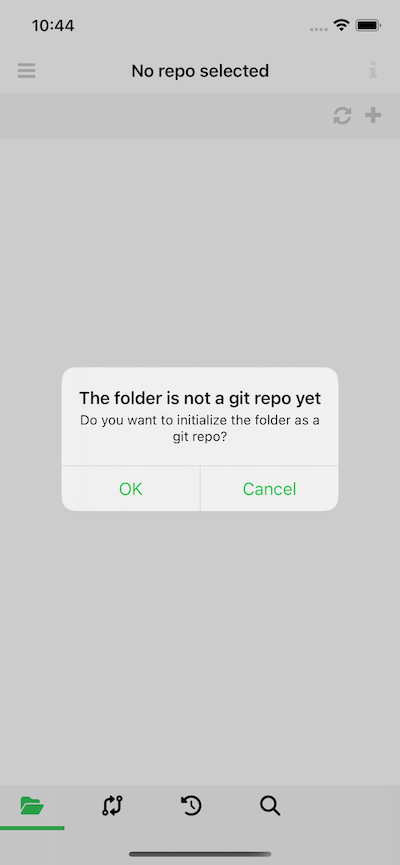
Create a GitHub for Obsidian Vault
Open "https://github.com" with your favoriate web browser, and create a new repo.
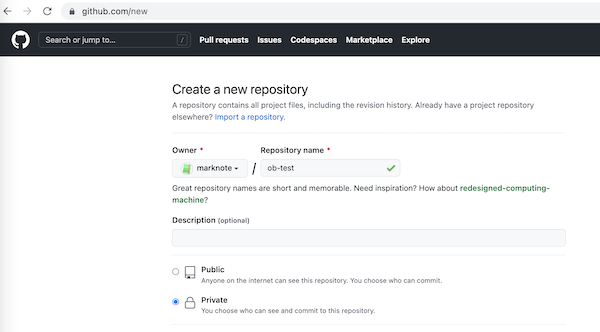
we need select "Private" for our Obsidian Vault unless we are sure we want everyone to see the contents.
Add Remote
With MarkGit, click the "i" icon at the top right, then click "Add remote"
Input the URL of the repo, then select GitHub credential.
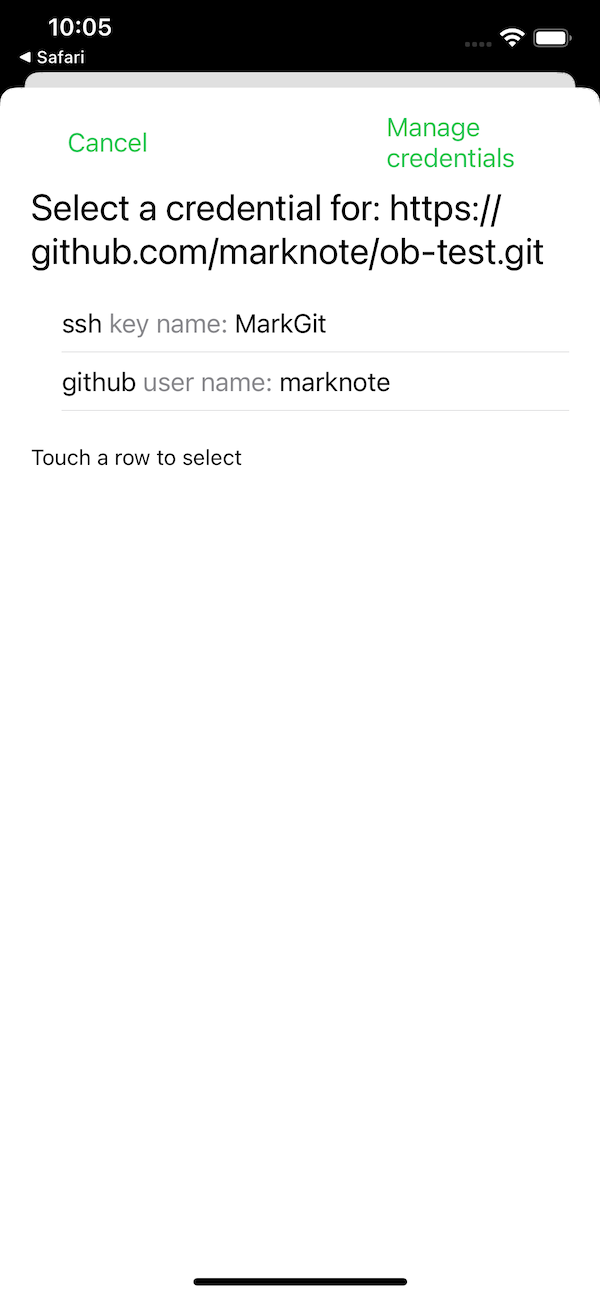
- If "OAuth credential" is used, we need use the URL with the prefix of "https";
- If SSH key credential is used, we need use the "ssh" URL, which is in the format of "git@{host}:{path}"
Sync
With MarkGit, go to the "Sync" view (by clicking the 2nd icon at the bottom)
Then click the "Sync" button.
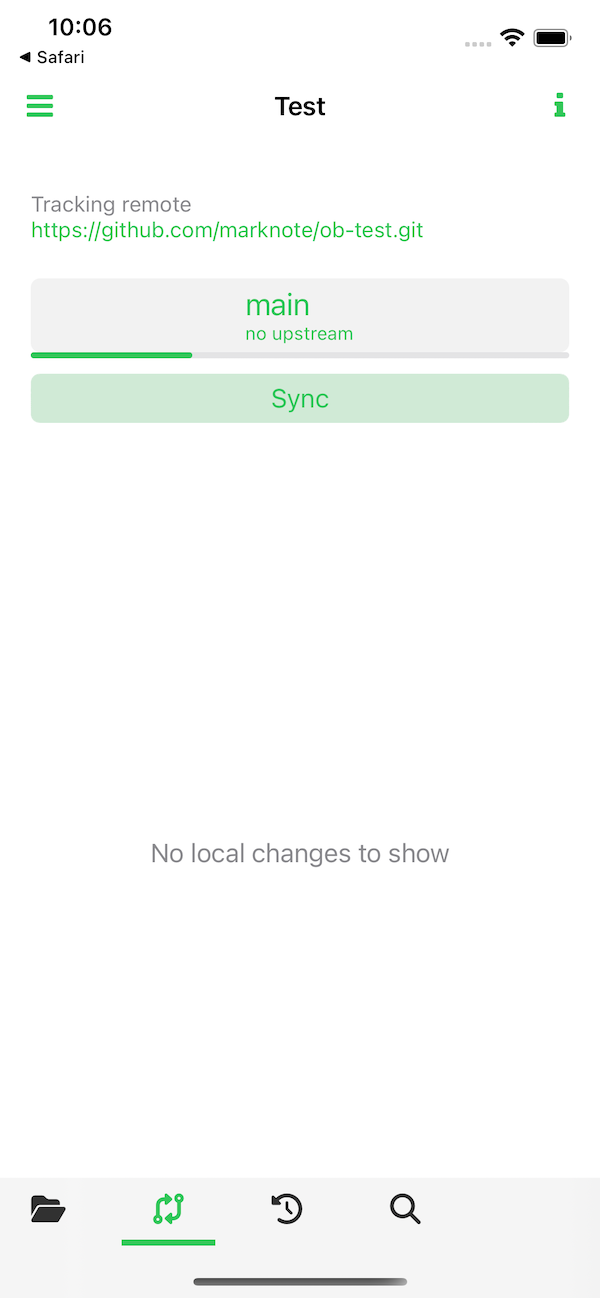
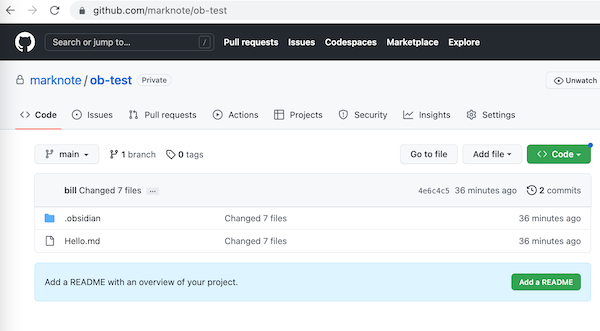
Once it is completed, we will be able to browse our contents in GitHub!
Use ShortCuts to make sync easier
Open the iOS built-in "Shortcuts" app,
- navigate to "Automation" tab, then click the "+" button at the top right
- Create a personal automation
- Find "App"
- then click the app, find "Obsidian"
- Click "Next", then select "Apps" tab, and find "MarkGit"
- Select "Sync the default repo with remote"
- Click "Done" to save the automation
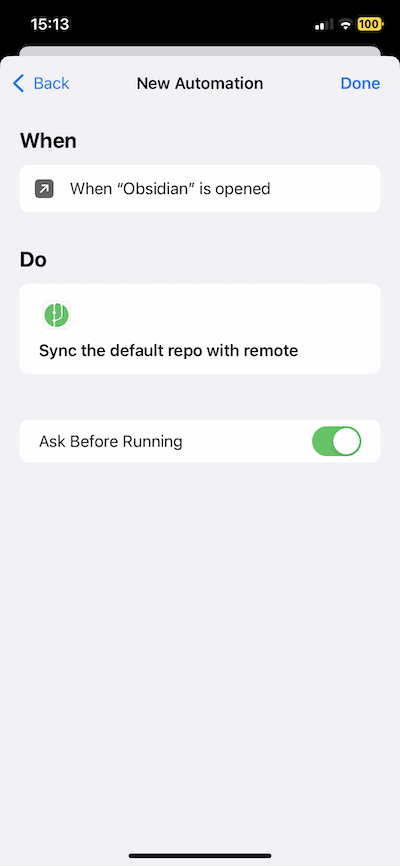
When every time, when we open Obsidian, MarkGit sync UI can be popup and sync data for us!