
MarkGit
Help Center
Features
Git client
As a git client, the app supports the following git operations:
- clone
- pull
- push
- create branch and switch branch
- commit / merge
- diff
Editor
Syntax highlighting
All mainstream programming languages: css, js, html, swift, objective-c, c/c++, java, python, R, etc
Realtime preview
With MarkGit, you can edit web page and code, and your changes can be previewed in realtime.

Tips:
- The console view can also be triggered to show with keyboard shortcut:
⌘l
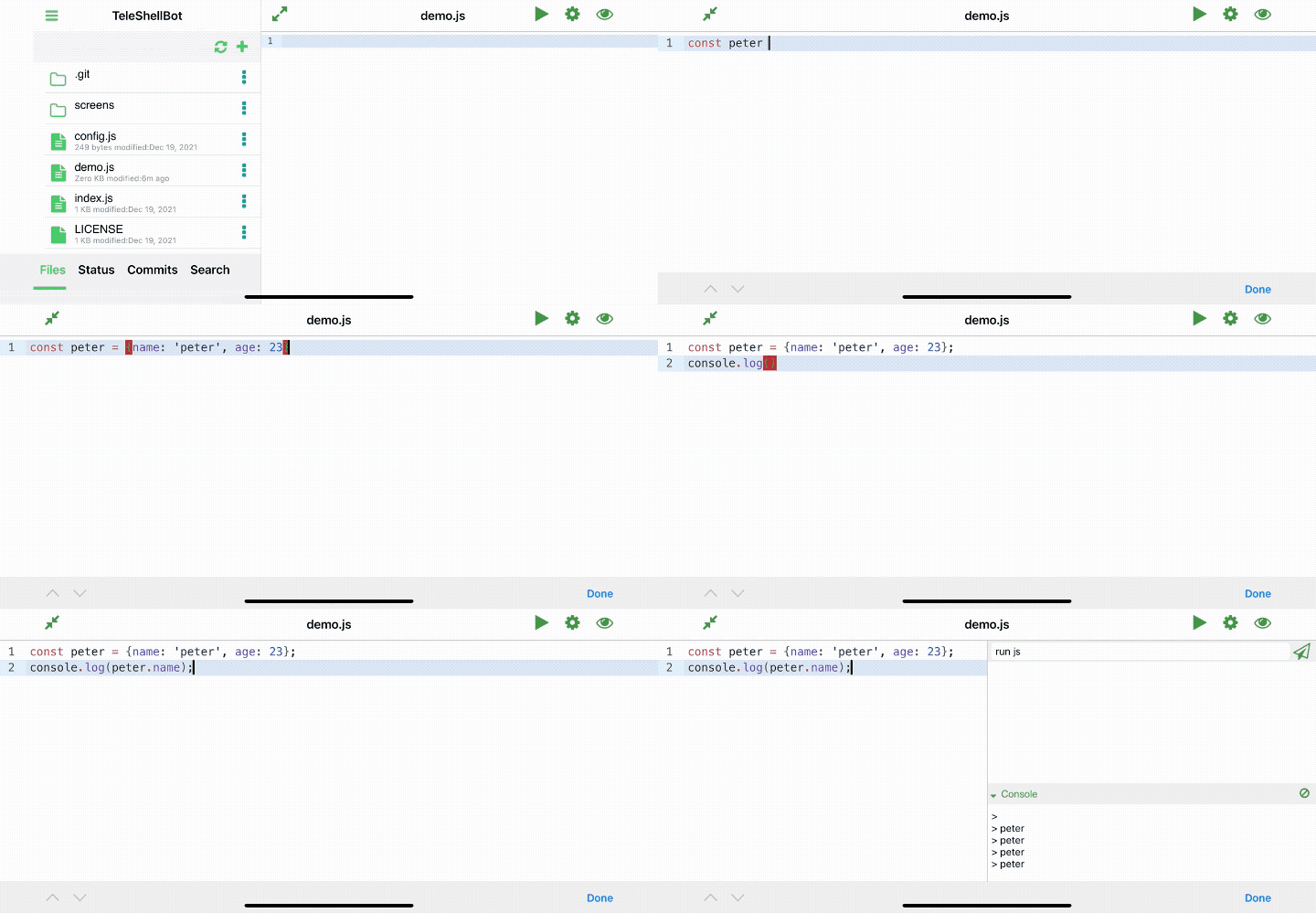
Code autocompletion and execution
Esepcially, MarkGit has extensive support to javascript/typescrit, including code intelligence.
You can also run code in few languages including javascript/trype, java, python, c, R.
Markdown support
MarkGit shared the same markdown parser engine with marknote which supports not only the full
Github flavored markdown featuers but also extended markdown syntax
FAQ
Any shortcuts?
The following shortcuts are supported on the Editor UI:
⌘f: show/hide the "find/replace" box⌘b: show/hide browser⌘i: enter/exit immersive mode
How to login into GitHub with Oauth?
Open MarkGit -> Menu -> Manage Credentials,
Find "OAuth credentials" -> GitHub, click "Login"
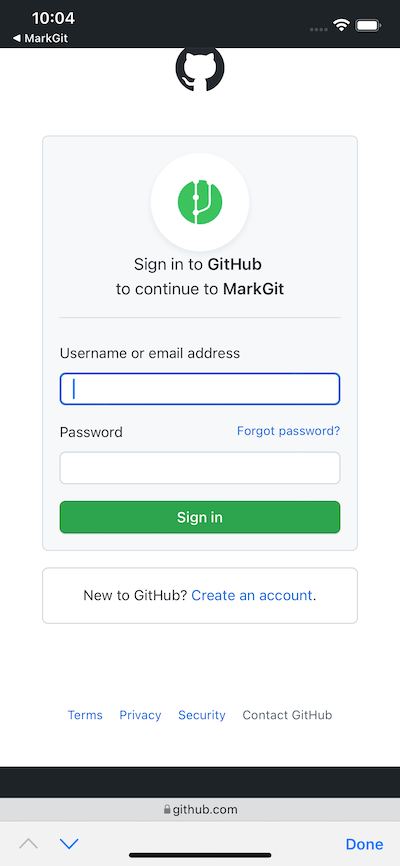
Mobile Safari will open github login page, input your github user name and password:
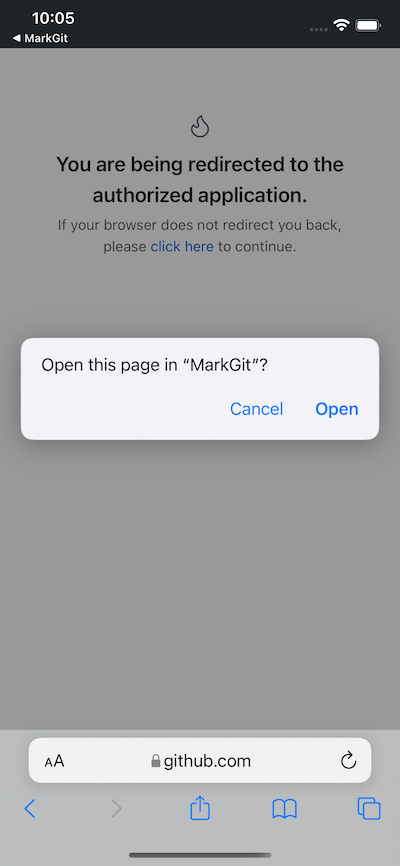
Once login succeeded, github will prompt "Open this page in 'MarkGit'", click "Open" then you will be set.
How to import images / files?
The file system of MarkGit is open and can be viewed by other apps, like Apple's Files app.
There are many ways you can add images / files into MarkGit.
For example, in iOS Photos app, choose a photo -> Share -> Save to Files -> On my iPhone/iPad -> MarkGit
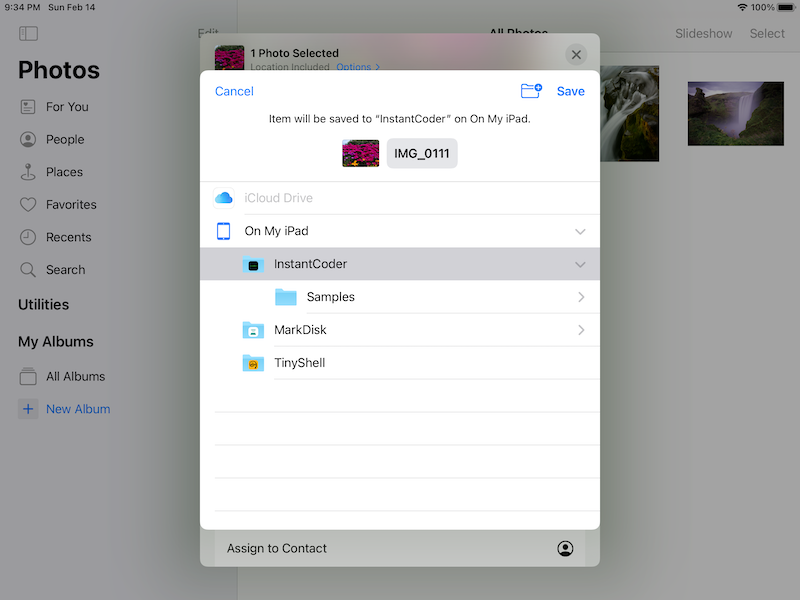
Then you will be able to see the newly added image in MarkGit
How to sync Obsidian vault with GitHub?
You can refer to Sync Obsidian Vault with GitHub